Practical · 8 November 2026
Every tap on Allow is a decision. Most of us make it without reading.
Casual Allow taps can trade privacy for convenience. This note names five permissions worth a slow thumb, and a five-minute starting check for iPhone and Android. It is not a full security assessment.
Picture this as a story, not a case file. You download a weather app at 7 a.m. It asks for your contacts. You tap Allow because you are late. Then location. Allow. Then Bluetooth. Allow. You never think about it again. A grant can let that app read what you just allowed. It does not, by itself, prove that a database now holds your address book or your morning route.
Every tap on Allow is a decision. Most of us make it without reading. Permission prompts are often easy to dismiss. Nielsen Norman Group (opens in a new tab) describes requests that arrive at a bad moment, fatigue from several prompts in a row, and Android dialogs that do not include a reason in the system box. The box is not a briefing.
What the studies actually measured
In a 2021 USENIX Security paper, Shen and colleagues report two different groups. One is 4,636 people who installed the researchers’ Permission Checker app and whose real Android permission settings were collected. That group was not asked the comprehension questions. The 6.1% figure comes from a separate Mechanical Turk survey, Survey 1, with 359 valid responses (180 Android and 179 iOS), collected from April 2019 to May 2020. About one in twenty of those respondents, 6.1%, selected every correct use of the permission groups they were shown, using the text in the system dialog. The authors say the result is not a census of all phone users. Shen et al., USENIX Security 2021 (opens in a new tab)
The same paper reports, from March 2018 news accounts, that Facebook’s Android app collected and uploaded call history and SMS messages when people had granted those permissions, and that some people were surprised when they later downloaded their data. That report is about call logs and text messages. It is not evidence about photos or contacts.
Richards and Hartzog describe ways digital consent can fail without the person seeing the failure, including consent given without understanding the technology or the consequences. The Pathologies of Digital Consent, Washington University Law Review, 2019 (opens in a new tab)
A 2020 questionnaire of 61 Android participants, after the authors dropped incomplete answers, found negative answers on microphone access from 62%, and a near split on the camera (39% negative, 34% positive). People in that sample were more willing to allow the same access to an app they already liked. It is not a current survey of every phone owner. Andriotis and Takasu, HCII 2020 (opens in a new tab)
Five taps worth a pause
These are not a ranked list of the five worst permissions on earth. They are five grants that deserve a slow thumb, because each one can reach more than a single button on the screen. Not every app that asks is malicious. You should still know who has the key.
- 1
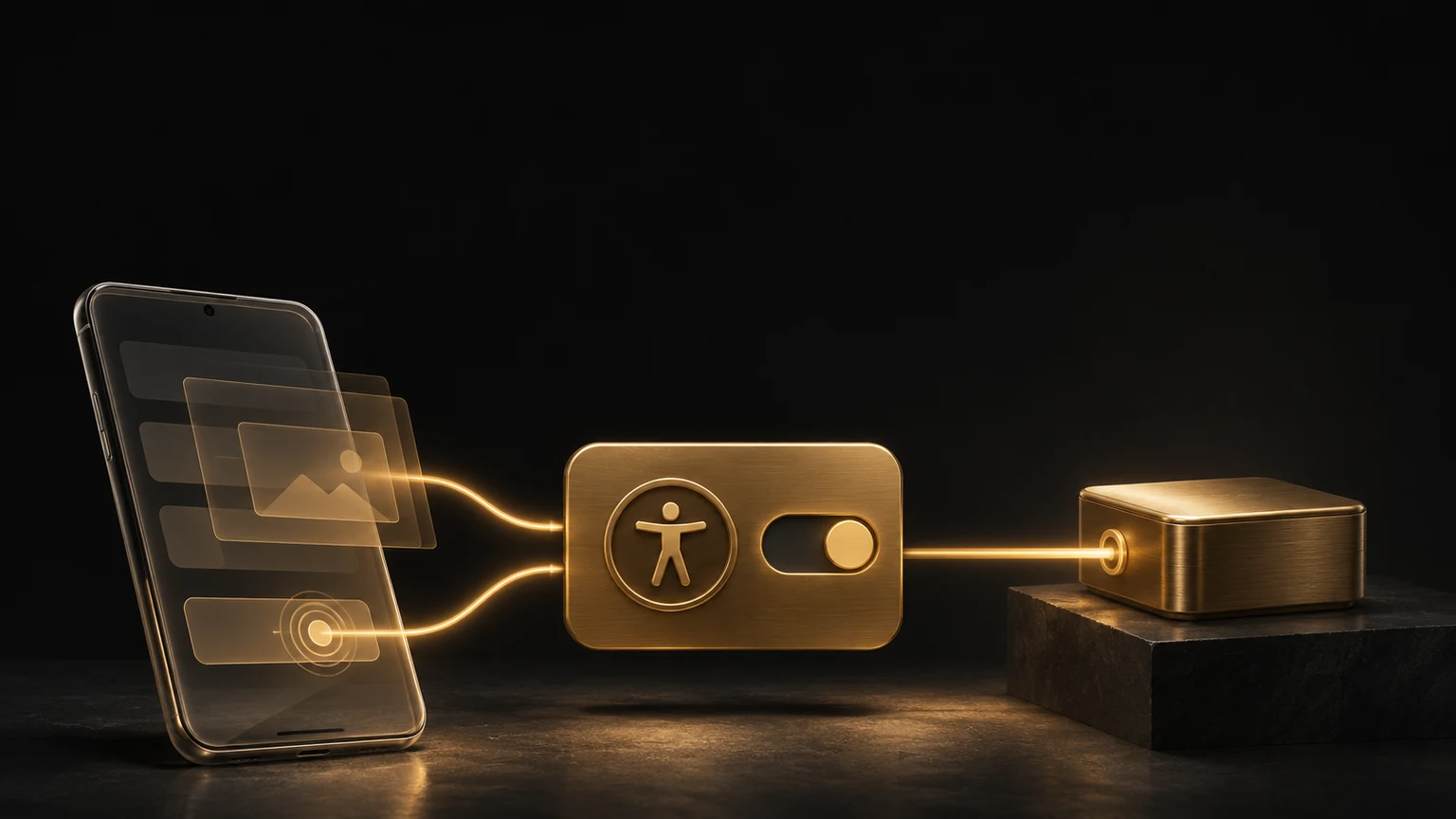
Accessibility access, on Android
Android’s Accessibility Service can read what is on the screen and perform actions for you. That is what many assistive tools need, and it is also powerful in the wrong hands. Android documentation (opens in a new tab) A flashlight that asks to act as your hands is a reason to stop and ask why. iPhone does not give ordinary apps this same system-wide service. Do not turn off an accessibility service you rely on. If you do not recognize a service, turn that service off. Turning a service off is not the same as uninstalling the app. Google’s guidance on harmful settings (opens in a new tab)
- 2
Notification access, not the whole screen
On Android, notification access lets an app read notifications the system delivers to it. That can include a message preview. It is not the same as recording the screen, and it is not the ordinary permission that only lets an app post its own alerts. What a listener can see depends on the Android version. Current Android documents a restricted permission, RECEIVE_SENSITIVE_NOTIFICATIONS, for certain sensitive notification content, including some one-time passwords. Apps without it cannot view those parts. That permission is limited to system-signed, preinstalled, known-signer, or role-holder apps, so an ordinary listener on Android 15 and later is not guaranteed a code. Older phones may still show more. NotificationListenerService (opens in a new tab) Sensitive-notification permission (opens in a new tab) A widget may be why an app asks. Decide whether that widget is worth the access.
- 3
Location all the time
“While using the app” is not the same as background location. Background location can keep a record of where the phone goes, including places you did not mean to log. Android location permissions (opens in a new tab) On iPhone, Apple documents While Using, Always, and Allow Once, and you can change them later in Settings. About Location Services (opens in a new tab)
- 4
Bluetooth and nearby devices
On Android 12 and later, the Nearby devices prompt covers scanning, advertising, and connecting. That grant is separate from the location permission. If an app uses Bluetooth scan results to derive physical location, Android also expects a location permission. A developer can mark the scan permission neverForLocation. That is the developer’s assertion that the app does not derive location from scans. Android then filters some Bluetooth Low Energy beacons out of the results. The flag is not proof the app cannot infer where you are another way. Android Bluetooth permissions (opens in a new tab) Headphones are one use. They are not the only use.
- 5
Contacts, photos, and broad file access
These are different grants. Contacts are the address book. Photos are the camera roll. “All files” on Android is broader than the photo picker. Where the phone offers a selection, such as limited contacts on iPhone, prefer the selection unless the feature truly needs everything. Apple on contact access (opens in a new tab) Android permission types (opens in a new tab) The Facebook call-and-SMS report above is not a report about photos.
A granted permission is a capability. It is not proof that the data was uploaded, stolen, or later abused. A 2019 Journal of Information Security paper discusses Android permission risks and a 100-person awareness survey in Saudi Arabia. It is not a count of how often granted permissions are exploited. Al Jutail, Al-Akhras, and Albesher, 2019 (opens in a new tab)
A five-minute starting check
You do not need to become a security expert. Five minutes is a start, not a finished audit. Menus move. Phone makers rename them. If a path below is missing, use the search box in Settings.
On iPhone
- Open Settings, then Privacy & Security. Apple’s guide is Control access to information in apps (opens in a new tab).
- Open Location Services, Tracking, Photos, Contacts, Bluetooth, Microphone, and Camera. For each app you do not use, turn the access off. For contacts, Apple documents a limited selection.
- Search Settings for Background App Refresh. On many iPhones it sits under General. Turning it off stops some background updates. It does not revoke a permission, and it does not by itself stop all tracking.
On Android
- Google’s current help, for many phones on Android 11 and later, is Settings, then Security & privacy, Privacy, Permission manager. Some phones still use Settings, Apps, then the app, then Permissions. Change app permissions (opens in a new tab)
- Review location, camera, microphone, contacts, and nearby devices. Revoke access you do not use. For location, where the phone offers it, “while using the app” is narrower than “all the time.” Google’s help says “all the time” is for location only. Camera and microphone do not use that same always option. Depending on the phone, the choices are while using the app, ask every time, or don’t allow. Change app permissions (opens in a new tab)
- Notification access is a separate review. Search Settings for Notification access. On many phones it sits under Apps, then Special app access. Google’s Messages help describes one Pixel path as Apps & notifications, Advanced, Special app access, Notification access. Turn off access you do not recognize. That list is who can read notifications, not the switch that only lets an app post its own. Notification access (opens in a new tab)
- For accessibility, search Settings for Accessibility, then look for installed or downloaded services. Leave the services you use. Turn off a service you do not recognize. That is not the same step as deleting the app.
Next time
Least access, shortest time, and a look again later. Grant a permission when a feature asks for it, not as a bundle when the app first opens. A messaging app needs contacts when you import them. A camera app needs the camera when you take a picture. Nielsen Norman Group’s timing advice is the same idea: ask for what the app needs to work at first launch, and ask for the rest in context.
If you deny a permission and a feature stops, that tells you the feature wanted that access. It does not prove the app is malicious. You can turn the permission back on. Less access is reversible. A copied address book is harder to take back.
“Share with partners” in a settings screen is the same kind of decision in different clothes. Read it before you leave it on.
Sign in with Google or Apple is a sign-in, not a device permission. Apple lets you share your name and either your email or a private relay address. Hide My Email (opens in a new tab) Google’s basic sign-in scopes can include your name and email. Access to Drive, Photos, or other Google data is a separate scope, not something the blue button grants by itself. Google’s scope list (opens in a new tab) Read the screen. Do not treat a familiar button as a reason to skip it.
The prompt is easy to skip. Your attention is the check you still control.
Related on this site
Mobile Exposure covers iPhone update cohorts, Android fix windows, cloud keys, and Bluetooth together. The Android accessibility article covers what that service can do when it is abused. This note is the everyday audit. It does not repeat those investigations.